Moving the Camera
Keep the scene still and change where you see it from. This is useful for a fly-by along a row of bodies, an orbit around a sign, or a shot that approaches a face before handing its text back to 2D.
The camera has three independent parts: an eye position, an orientation, and a focal length. Travel changes the first, turning changes the second, and zoom changes the third. Camera and projection explains focal length, perspective and depth.
Choose a control
| What you want | Immediate call | Queued call | What changes |
|---|---|---|---|
| Set a world position | set_position(x, y, z) |
move_to(x, y, z, frames=60) |
Eye position |
| Add a world displacement | move_by(x, y, z) |
Use an explicit target with move_to |
Eye position |
| Move forward/backward | dolly(amount) |
dolly_by(amount, frames=60) |
Eye along its local -z |
| Move right/left | truck(amount) |
truck(amount, frames=60) |
Eye along its local +x |
| Move up/down | pedestal(amount) |
pedestal(amount, frames=60) |
Eye along its local +y |
| Look left/right | pan(degrees) |
Same call with frames=60 |
Orientation about local +y |
| Look up/down | tilt(degrees) |
Same call with frames=60 |
Orientation about local +x |
| Turn the image | roll(degrees) |
Same call with frames=60 |
Orientation about local +z |
| Set a world orientation | set_rotation(rotation) |
turn_to(rotation, frames=60) |
Orientation |
| Aim at a point or body | look_at(x, y, z) or look_at(body) |
Same call with frames=60 |
Orientation |
| Circle a target, staying aimed at it | orbit("y", degrees=30, around=body) |
orbit("y", turns=1, around=body, frames=240) |
Position and orientation |
| Magnify from the same position | zoom(factor) |
zoom_to(focal, frames=60) |
Focal length |
Angles here are degrees; Rotation itself uses radians, or use the degree-based rotation_about(axis, degrees)
helper. Methods return the camera for chaining. A positive travel amount means forward, right or up; negative
amounts reverse it. set_position and move_to take absolute world coordinates and default omitted coordinates
to zero. move_by takes displacements and leaves omitted components unchanged.
Travel in camera axes
At the default orientation, dolly(10) moves along world -z, truck(10) along world +x and pedestal(10) along
world +y. Once the camera turns, its axes turn with it. The world axes do not.
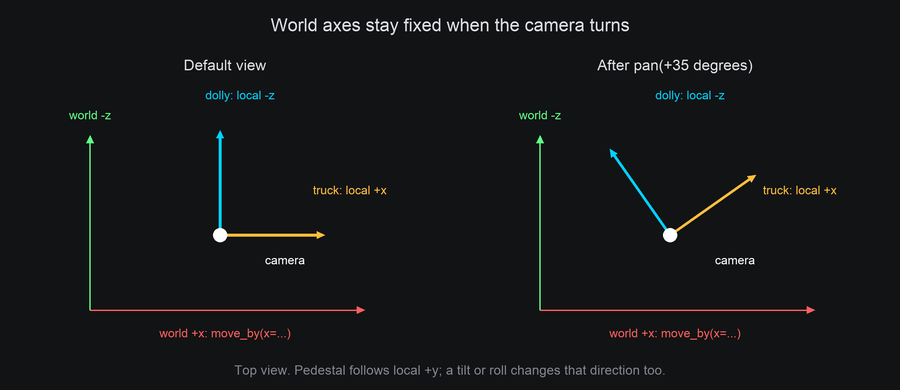
from terminaltexteffects.engine.space3d import rotation_about

camera = self.space.camera
camera.set_rotation(rotation_about("y", 35))
camera.truck(10)       # Along the turned camera's right axis.
camera.move_by(x=10)   # Along fixed world +x instead.
Travel does not automatically re-aim the camera. Dolly travels along the current forward direction; moving to a world position leaves orientation alone. To travel while watching a target, choose an orbit or explicitly aim again. A queued travel action captures its local direction when it starts, so a simultaneous pan does not bend a dolly path. Camera timing covers that shared starting pose.
Seeing travel
The camera lab keeps two cubes and three small landmarks fixed. Cyan F is the foreground cube; purple B is the background cube. Each phase starts from the same view, moves one way, and pauses. The readout shows the eye's world coordinates while the objects stay put:
tte --input-file concept_input.txt --canvas-width 80 --canvas-height 32 --anchor-text c cameralab --lesson travel

        if phase == 0:
            camera.dolly_by(24, frames=60, ease=easing.in_out_sine)
            self.title = "DOLLY +24: move forward; F grows faster than B"
        elif phase == 1:
            camera.truck(10, frames=60, ease=easing.in_out_sine)
            self.title = "TRUCK +10: move right; the scene slides left"
        else:
            camera.pedestal(10, frames=60, ease=easing.in_out_sine)
            self.title = "PEDESTAL +10: move up; the scene slides down"
Turn the view without moving the eye
Pan, tilt and roll rotate about the camera's current local axes. A positive pan looks left; a positive tilt looks up. A positive roll rotates the camera counterclockwise about its backward (+z) axis, so the image turns clockwise. Watch the eye coordinates stay constant:
tte --input-file concept_input.txt --canvas-width 80 --canvas-height 32 --anchor-text c cameralab --lesson turns

        if phase == 0:
            camera.pan(8, frames=60, ease=easing.in_out_sine)
            self.title = "PAN +8 deg: look left; the eye stays still"
        elif phase == 1:
            camera.tilt(8, frames=60, ease=easing.in_out_sine)
            self.title = "TILT +8 deg: look up; the eye stays still"
        else:
            camera.roll(20, frames=60, ease=easing.in_out_sine)
            self.title = "ROLL +20 deg: turn the camera; the image turns clockwise"
A body rotation and a camera rotation have different meanings. Rotating a body changes that body and its anchors. Turning the camera changes how every body is seen. Body-local face names such as a cube's "front" remain attached to the cube; they do not switch to whichever face is nearest the camera.
set_rotation(rotation) sets a world orientation immediately. turn_to(rotation, frames=...) takes the shortest
quaternion path to that orientation. Use pan, tilt and roll to describe a turn relative to the current camera;
use turn_to for a known final world orientation. Neither moves the eye.
Aim at a target
look_at computes an orientation from the current eye toward a world point. It also chooses a roll using a world-up
direction, +y by default:
camera.look_at(0, 0, 0)                    # Point at the world origin now.
camera.look_at(cube)                        # Point at this body's origin now.
camera.look_at(cube, up=(1, 0, 0))           # Prefer world +x as up.
camera.look_at(cube, frames=60, ease=easing.in_out_sine)  # Turn there over time.
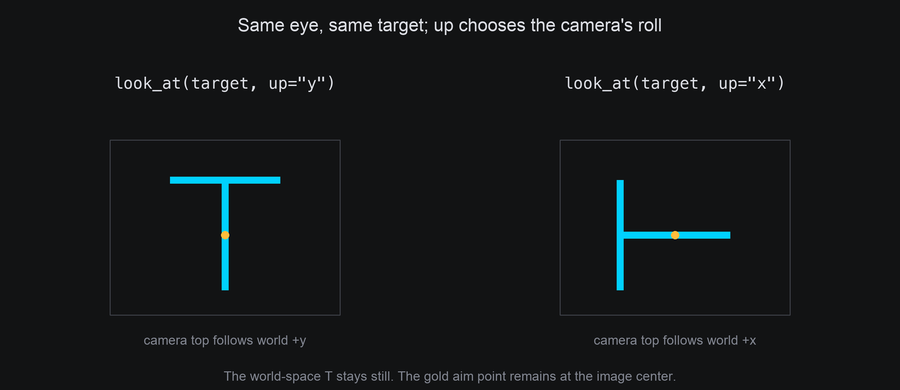
up is a direction, not another target position. The camera uses its component perpendicular to the view.
Changing it changes the roll around the viewing direction, much
like rolling an aimed camera. An up direction parallel to the view cannot determine that roll; the camera uses
its previous right axis as a fallback. Choose an up direction away from parallel when you need a predictable roll.
A target at the eye and a zero up vector raise ValueError.
A sampled target and a moving target
A queued look_at(body, frames=...) samples the body's position when the tween starts, after any earlier camera
groups. It then turns toward that sampled point. It does not keep watching the body as it moves. To follow a moving
body, move it and call immediate look_at(body) each frame before space.step().


The two recordings use the same target motion. The following code moves the body directly, then aims from its current position. The normal frame loop steps the space once and ticks the characters afterward:
        x = -14 * math.cos(2 * math.pi * self.frame_number / self.duration)
        self.subject.set_position(x, 0, -8)
        if self.config.lesson == "follow":
            self.space.camera.look_at(self.subject)
        # `__next__` calls space.step() and update() after these immediate changes.
If the target moves through body tweens, those advance inside space.step() instead. Use the
completion-phase tracking pattern to aim after that motion without stepping twice.
Orbit a stationary scene
Orbit changes position and orientation together. A world axis passes through the target, the eye turns around that
axis, and the camera stays aimed at the target. The radius must be nonzero. around accepts a body, a Vec3, or an
(x, y, z) world point. A body target is sampled when the action starts, just like look_at.

camera.set_position(0, 20, 170).look_at(cube).zoom(1.25)
camera.orbit("y", turns=1, around=cube, frames=360, ease=easing.in_out_sine)
Supply either degrees or turns, not both. With no angle supplied, orbit defaults to one full turn. With no
frames supplied, it applies immediately. With frames=0, it obeys queue ordering: it applies now only if nothing
is queued ahead. Its up direction controls aiming roll as for look_at.

The cube and gold landmarks stay fixed in world space. Their changing overlap and relative position show that the viewpoint is moving. This differs from the body-orbit example, where the moon itself travels around a fixed planet. Moving the camera affects the whole scene, including mount depth and facing, occlusion and clipping.
Standalone orbit example
Save this whole module as cameraorbit.py in your community effects directory.
"""A moving camera circles a stationary cube carrying the input text."""

from __future__ import annotations

from dataclasses import dataclass

from terminaltexteffects import Color, ColorPair, Gradient
from terminaltexteffects.engine.base_config import BaseConfig
from terminaltexteffects.engine.base_effect import BaseEffect, BaseEffectIterator
from terminaltexteffects.engine.space3d import Cube, Solid, Space3D
from terminaltexteffects.utils import argutils, easing
from terminaltexteffects.utils.geometry import Coord


def get_effect_resources() -> tuple[str, type[BaseEffect], type[BaseConfig]]:
    """Return the command name, effect and configuration classes."""
    return "cameraorbit", CameraOrbit, CameraOrbitConfig


@dataclass
class CameraOrbitConfig(BaseConfig):
    """Configuration for the CameraOrbit guide example."""

    parser_spec = argutils.ParserSpec(
        name="cameraorbit",
        help="A camera circles a stationary cube carrying text.",
        description="cameraorbit | A camera circles a stationary cube carrying text.",
        epilog="Example: tte --canvas-width 80 --canvas-height 32 --anchor-text c cameraorbit",
    )


class CameraOrbitIterator(BaseEffectIterator[CameraOrbitConfig]):
    """Keep the cube still and animate only the camera."""

    def __init__(self, effect: CameraOrbit) -> None:
        """Place text on the cube's front face and queue a complete orbit."""
        super().__init__(effect)
        self.space = Space3D(self.terminal)
        # A quiet surface lets the mounted letters carry the detail.
        self.cube = self.space.body(Cube(48)).draw(Solid(gradient=Gradient(Color("132432"), Color("247b91"), steps=12)))
        for x, z in ((-30, -15), (30, -15), (0, 32)):
            self.space.body(Cube(4), at=(x, -23, z)).draw(
                Solid(gradient=Gradient(Color("493522"), Color("e4ac59"), steps=8))
            )
        self.labels = []
        title = "CAMERA ORBIT: cube and gold landmarks stay still"
        start = self.terminal.canvas.center.column - len(title) // 2
        for offset, symbol in enumerate(title):
            label = self.terminal.add_character(symbol, Coord(start + offset, self.terminal.canvas.top))
            label.layer = 10_000
            label.animation.set_appearance(symbol, ColorPair(fg=Color("d9e5ef")))
            self.terminal.set_character_visibility(label, is_visible=True)
            self.labels.append(label)
        characters = self.terminal.get_characters()
        anchors = [self.cube.anchor(a.point.x, a.point.y, 24, normal="z") for a in self.cube.text_plane(characters)]
        self.cube.add_chars(characters, anchors, blend_frames=0, hide_when_facing_away=True)
        for character in characters:
            self.terminal.set_character_visibility(character, is_visible=True)
            self.active_characters.add(character)
        self.space.camera.set_position(0, 20, 170).look_at(self.cube).zoom(1.25)
        self.space.camera.orbit("y", turns=1, around=self.cube, frames=360, ease=easing.in_out_sine)
        self.finished = False

    def __next__(self) -> str:
        """Orbit once, then release the text back to its input cells."""
        if self.space.animating:
            self.space.step()
        elif not self.finished:
            self.cube.release_all()
            for body in self.space.bodies:
                body.erase()
            for label in self.labels:
                self.terminal.set_character_visibility(label, is_visible=False)
            self.space.step()
            for character in self.terminal.get_characters():
                character.motion.set_coordinate(character.input_coord)
                self.terminal.set_character_visibility(character, is_visible=True)
            self.finished = True
        else:
            raise StopIteration
        self.update()
        return self.frame


class CameraOrbit(BaseEffect[CameraOrbitConfig]):
    """A camera circles a stationary cube carrying text."""

    @property
    def _config_cls(self) -> type[CameraOrbitConfig]:
        return CameraOrbitConfig

    @property
    def _iterator_cls(self) -> type[CameraOrbitIterator]:
        return CameraOrbitIterator
Run the camera lab
All twelve camera lab lessons come from one standalone module,
cameralab.py.
Save the whole file as cameralab.py in your community effects directory. The excerpts in the guide are parts of
that iterator, not separate effects. These examples need the development version described in
3D Effects, and use an 80-column, 32-row canvas so captions and shapes have room.
| Lesson | Chapter |
|---|---|
travel, turns, sampled, follow |
This page |
dolly, zoom, orthographic |
Camera and projection |
world-light, camera-light |
Light and shading |
sequence, restore |
Animating in 3D |
clip |
Depth and hidden surfaces |
The captions are ordinary 2D characters at a high layer. They remain readable while the camera moves and do not participate in 3D depth ordering. Each lesson ends by hiding its scene and restoring the original input text.