Library Guide
Playing Effect Animations
All effects are iterators which return a string representing the current frame. Basic usage is as simple as importing the effect, instantiating it with the input text, and iterating over the effect. Effects include a helpful context manager (effect.terminal_output()) to handle terminal setup/teardown and cursor positioning.
The following example plays the Slide effect animation using the effect.terminal_output() context manager.
from terminaltexteffects.effects.effect_slide import Slide

text = ("EXAMPLE" * 10 + "\n") * 10

effect = Slide(text)
effect.effect_config.merge = True # (1)
with effect.terminal_output() as terminal:
    for frame in effect:
        terminal.print(frame)
- Use the
effect_configattribute to modify the effect configuration. SettingmergetoTrueon the Slide effect causes the text to slide in from alternating sides of the terminal.
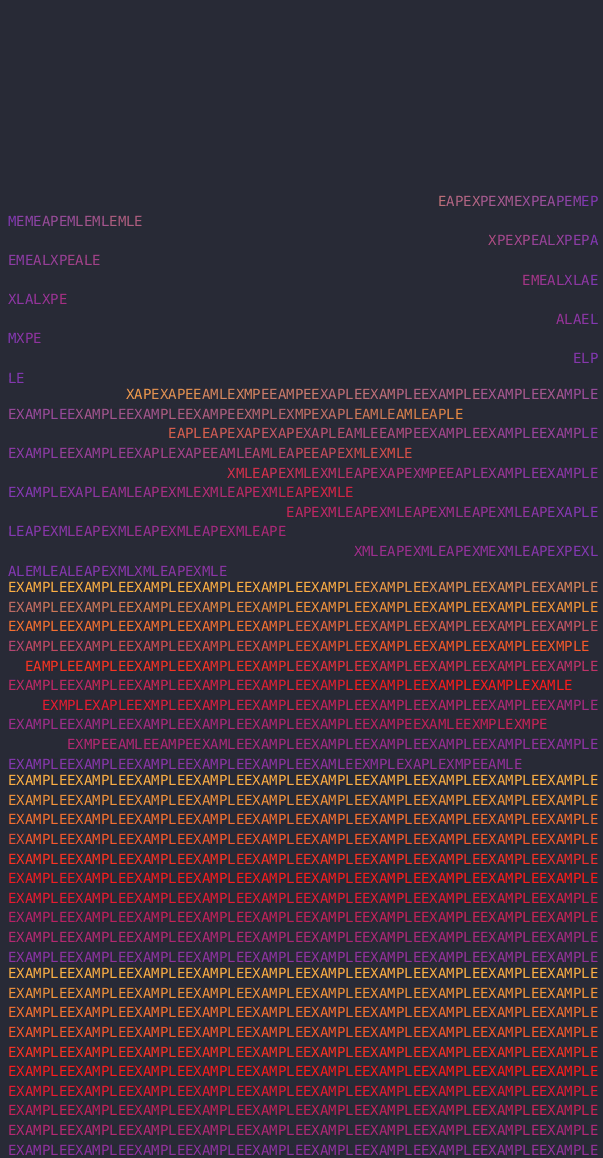
Effects are Iterable
If you want to handle the output yourself, such as sending the frames to a TUI or GUI, simply iterate over the effect without the context manager.
from terminaltexteffects.effects.effect_slide import Slide

text = ("EXAMPLE" * 10 + "\n") * 10

effect = Slide(text)
effect.effect_config.merge = True # (1)
for frame in effect:
    ...  # frame is a string; send it to your own output
- Use the
effect_configattribute to modify the effect configuration. SettingmergetoTrueon the Slide effect causes the text to slide in from alternating sides of the terminal.
Configuring Effects
All effect configuration options are available within each effect via the effect.effect_config and effect.terminal_config attributes.
from terminaltexteffects.effects.effect_slide import Slide
from terminaltexteffects.utils.graphics import Color

text = ("EXAMPLE" * 10 + "\n") * 10

effect = Slide(text)
effect.effect_config.merge = True  # (1)
effect.effect_config.grouping = "column"  # (2)
effect.effect_config.final_gradient_stops = (Color("#0ff000"), Color("#000ff0"), Color("#0f00f0"))  # (3)
effect.terminal_config.canvas_width = 30  # (4)
with effect.terminal_output() as terminal:
    for frame in effect:
        terminal.print(frame)
- Use the
effect_configattribute to modify the effect configuration. SettingmergetoTrueon the Slide effect causes the text to slide in from alternating sides of the terminal. - Columns will slide in, rather than rows.
- Change the gradient colors from the defaults.
- Set the canvas width explicitly. The canvas height keeps its default, which matches the input text height.
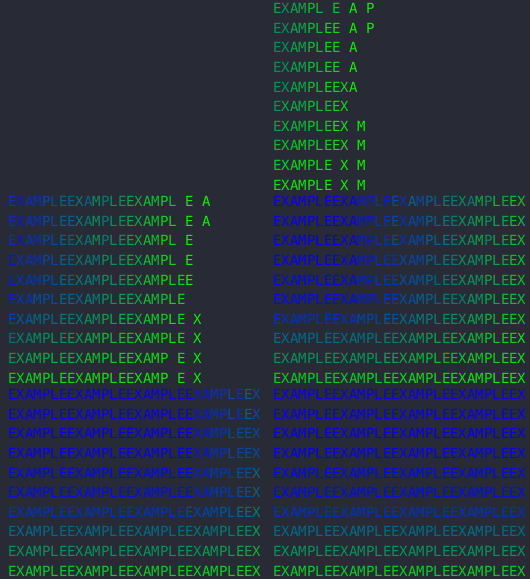
Configuring the Terminal/Canvas
Terminal/Canvas Dimensions
TTE uses a Terminal class and a Canvas class to handle terminal/canvas dimensions, wrapping text, etc. Effects contain an attribute (effect.terminal_config) which allows access to the various terminal configuration options. The configuration should be modified prior to iterating over the effect.
For example, to set the Canvas dimensions manually:
Both dimensions default to -1, which matches the input text. Set a dimension to 0 to detect it from the terminal
device, or to a positive integer to use that size.
By default, if your Canvas dimensions exceed the visible area of the Terminal, the text outside of that area will not be
output in the frame. If you want to output all characters regardless of their position relative to the visible terminal
area, set terminal_config.ignore_terminal_dimensions to True. Use this only if you are handling the frame
yourself and outputting somewhere other than the terminal. Otherwise, the terminal emulator will wrap the text and
produce unexpected results.
Frame Rate
TTE sets a default target frame rate of 60 FPS. To configure this within your scripts, access the
effect.terminal_config.frame_rate attribute. Set this attribute to 0 to remove the frame limit.
For more information on terminal configuration options, check out the TerminalConfig reference.
Infinitely Looping Effects
Some effects support infinite looping. For example, setting
ColorShiftConfig.cycles to
0 makes ColorShift cycle indefinitely. Explore the configuration options for a given
effect to see if it supports infinite looping. An infinitely looping effect never finishes, so stop iterating when
your application no longer needs frames.
Note
From the command line, tte colorshift --cycles 0 loops indefinitely, and --repeat 0 replays any effect until
Ctrl+C. In the published 0.15.0 package, --cycles requires a positive value and --repeat is not available.
Collecting Frames
This example collects a short Wipe animation and prints its last frame. A fixed canvas and no frame-rate delay let it run without a live terminal, for example in a test. For normal animations, print each frame with the context manager shown above.
from terminaltexteffects.effects.effect_wipe import Wipe

effect = Wipe("Hi")
effect.terminal_config.canvas_width = 2
effect.terminal_config.canvas_height = 1
effect.terminal_config.ignore_terminal_dimensions = True
effect.terminal_config.frame_rate = 0
effect.terminal_config.no_color = True
frames = list(effect)
print(frames[-1])
The final frame contains Hi. Collecting frames retains them in memory; for larger input,
consume the iterator incrementally. Frame strings contain cursor-positioning sequences even
when colors are disabled.